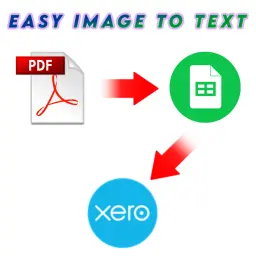
Convert PDF to Google Sheets and CSV
Table Extractor that lives inside Google Sheets as a sidebar

Details
- Follow on
- @Sriram_GKLinkedIn
- Target Audience
- Small Business OwnersSmall Businesses
- Pricing
- Freemium from $10
- Platforms
- Web





About Convert PDF to Google Sheets and CSV
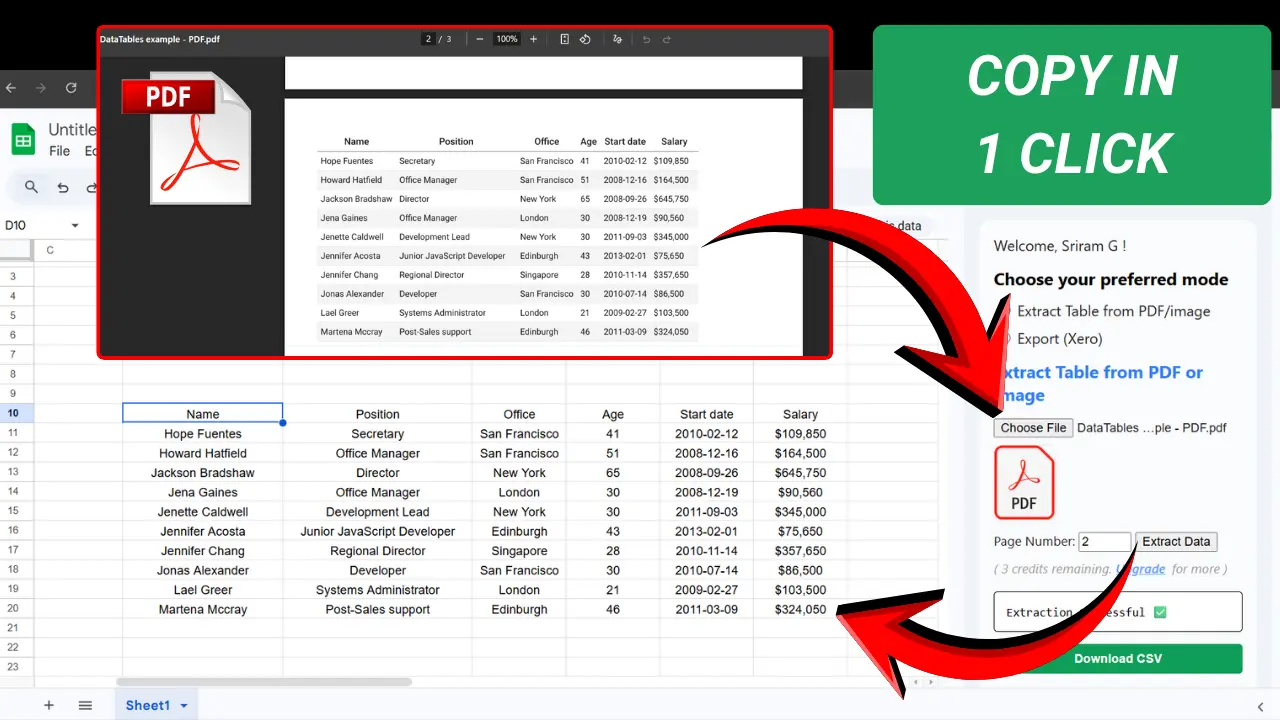
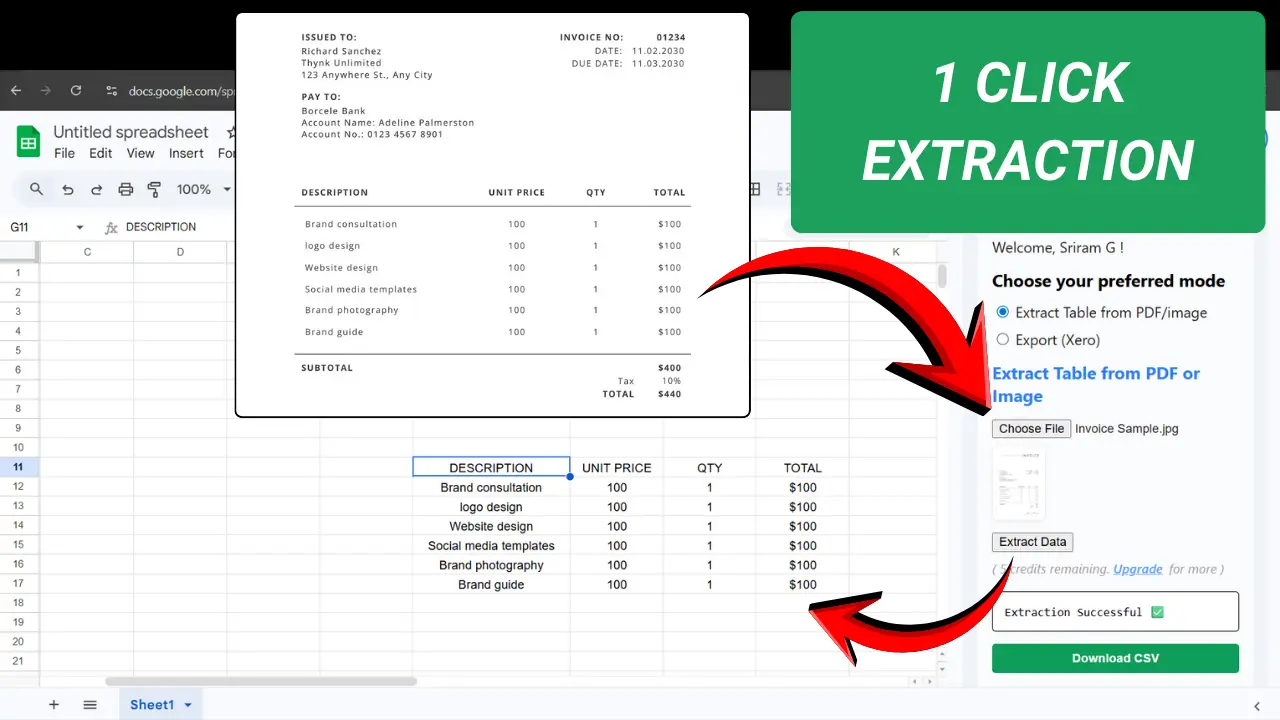
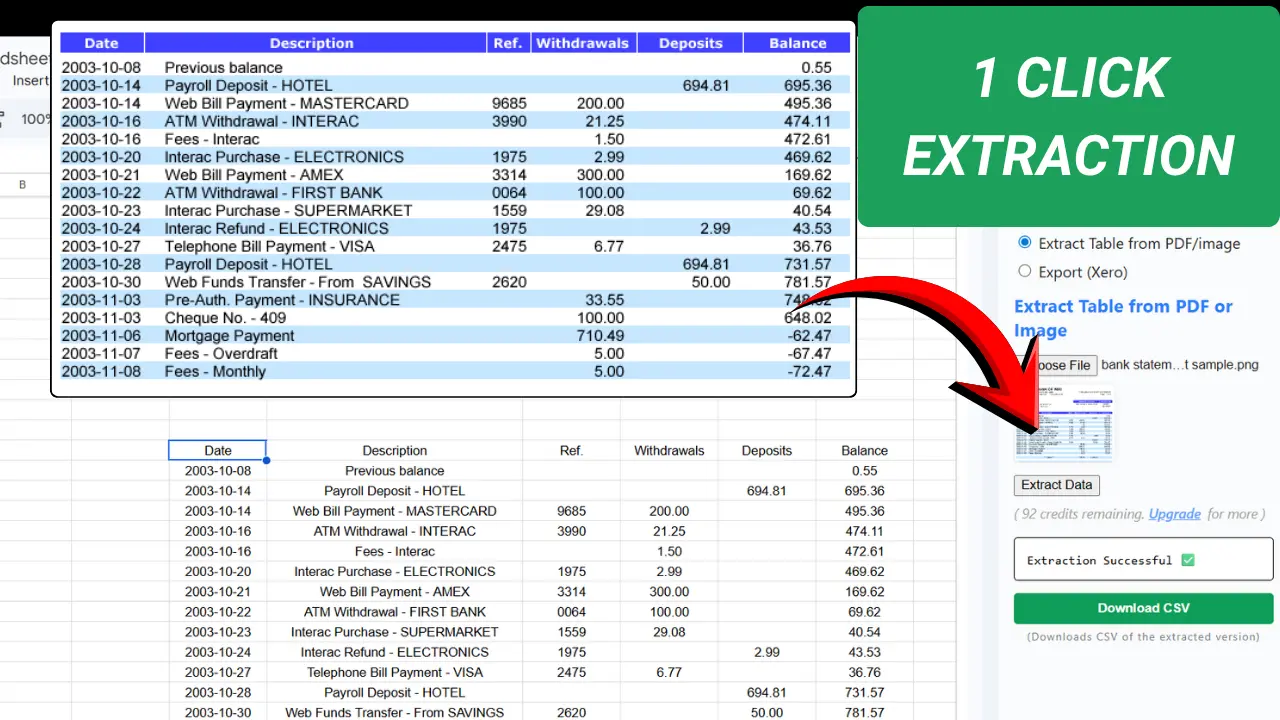
Convert PDF to Google Sheets and CSV in 1 click. Extract any tabular data from PDF or Image, with a Table OCR that lives inside Google Sheets as a sidebar. This add-on works as a sidebar inside Google Sheets and lets you import bank statements, invoices, reports or any other tabular data from a PDF or image, and with a single click, get that data on the active spreadsheet in a minute. PERFECT FOR ✅ Bookkeepers – enter invoice/bill tables into Google Sheets ✅ Accountants – convert financial statements to editable data ✅ Data entry operators – avoid manual typing ✅ Operations / back-office – process vendor documents ✅ Finance analysts – analyze tabular data from PDFs ✅ Procurement teams – digitize purchase orders ✅ Admin assistants – handle document-to-sheet tasks ✅ Small business owners – manage bills without staff ✅ Auditors – extract tables from reports WHY THIS ADDON ✅ 1-click automation of tabular data entry, directly inside Google Sheets. ✅ Uses advanced AI model for accurate table extraction ✅ Preserves columns, rows and layout ✅ No data stored permanently - full privacy ✅ Responsive support in case of any queries or assistance. ✅ Reasonable pricing HOW IT WORKS 1. Install the add-on with all the required permissions, and do a one-time google sign-in to our app. 2. After successful sign-in, select "Extract" mode in the sidebar. 3. Upload a PDF or Image (currently it extracts only one image at a time, or one PDF page at a time). 4. In case of PDF, choose the page number to extract. 5. Click 'Extract' button. 6. Depending on table complexity, extraction completes in less than 10 secs, to less than a minute. 7. After successful extraction, you will see the table data on the spreadsheet with layout intact. 8. You will also see a "Download CSV" button to get the corresponding .csv file of the table data. 9. If you have more than one table in a PDF page or an image, only the prominent table is extracted. In such case you may snap the other table separately and upload. USE CASES ✅ Convert PDF to Google Sheets™ and make tabular data from PDF editable and ready for analysis. ✅ Convert PDF to CSV without losing formatting. ✅ Convert PDF to Excel without any manual entry, by getting the CSV or XLSX in 1 click and importing in Excel spreadsheet. ✅ Extract Table from Image in 1 click, without any manual entry. ✅ Extract Table from PDF or scanned PDF without any manual entry. ✅ Copy Table from PDF to Excel by getting the CSV or XLSX in 1 click and importing in Excel sheet. ✅ Convert PDF Bank Statement to CSV, without losing formatting, and save hours on bookkeeping. FAQ Q1. What types of documents does this extension work well with? A1. Clear, structured tables such as invoices, bills, receipts, and reports where data is arranged in rows and columns. Q2. Does the extension support handwritten text? A2. Yes, but accuracy depends on handwriting clarity. Q3. What image formats are supported? A3. Common image formats (JPG, PNG, BMP, GIF, WEBP, etc.). Q4. Is this extension free to use? A4. We offer 5 free credits every month. For more credits you can upgrade to our premium plans. We offer both subscriptions and top-up plans. Check out our pricing page to compare plans and choose what suits you best. Q5. How can I contact you for queries or support? A5. Reach us anytime at [email protected] Q6. How to transfer bank statement to Google Sheets™ with this add-on? A6. Upload the bank statement table as a PDF or Image, choose the page number to extract from(in case of PDF), and click the "extract data" button. The add-on will then extract and write the bank statement data on the sheet without requiring any manual entry. You will also see a "download CSV" button, which you can use to import the data in excel spreadsheet if required. This way the add-on acts as a 1-click bank statement converter that works directly inside Google Sheets™. Q7. How to convert PDF to Google Sheets™ without losing formatting using this add-on? A7. Upload the PDF whose table data you want to convert, select the page number to extract from, and click the 'extract data' button. The add-on will use AI to capture the tabular data from that page and automatically write it on the sheet, preserving the tabular layout with rows and columns. You will also see a 'download CSV' button that will provide you the .csv file corresponding to the table extracted from that page. You can use this .csv file to import in excel spreadsheet if required. Q8. How to get table from image to excel using this add-on? A8. Upload the image that has the table data, and click 'Extract Data' button. The add-on will extract the table data on the spreadsheet, and also provide a "Download CSV" button, using which you can get the .csv file. You can then import this CSV
Product Insights
This Table OCR extension functions as a Google Sheets sidebar to automate the extraction of tabular data from PDF files and images. The tool integrates directly into the workspace to convert reports, invoices, and bank statements into editable spreadsheet rows.
- Direct integration as a Google Sheets sidebar for seamless data importing.
- Preservation of table layouts, columns, and rows during OCR conversion.
- Data privacy focus with no permanent storage of processed documents.
- One-click generation of both spreadsheet data and downloadable CSV files.
Ideal for: Small business owners and data operators who need to automate the entry of invoice and bank statement tables into Google Sheets.
This tool serves as an alternative to products such as PDF to Google Sheets, Bank PDF Converter, and JPG to Excel Converter.
Screenshots
Reviews (0)
No reviews yet. Be the first to rate this product!
Comments (0)
No comments yet. Be the first to share your thoughts!